 English
 Romana

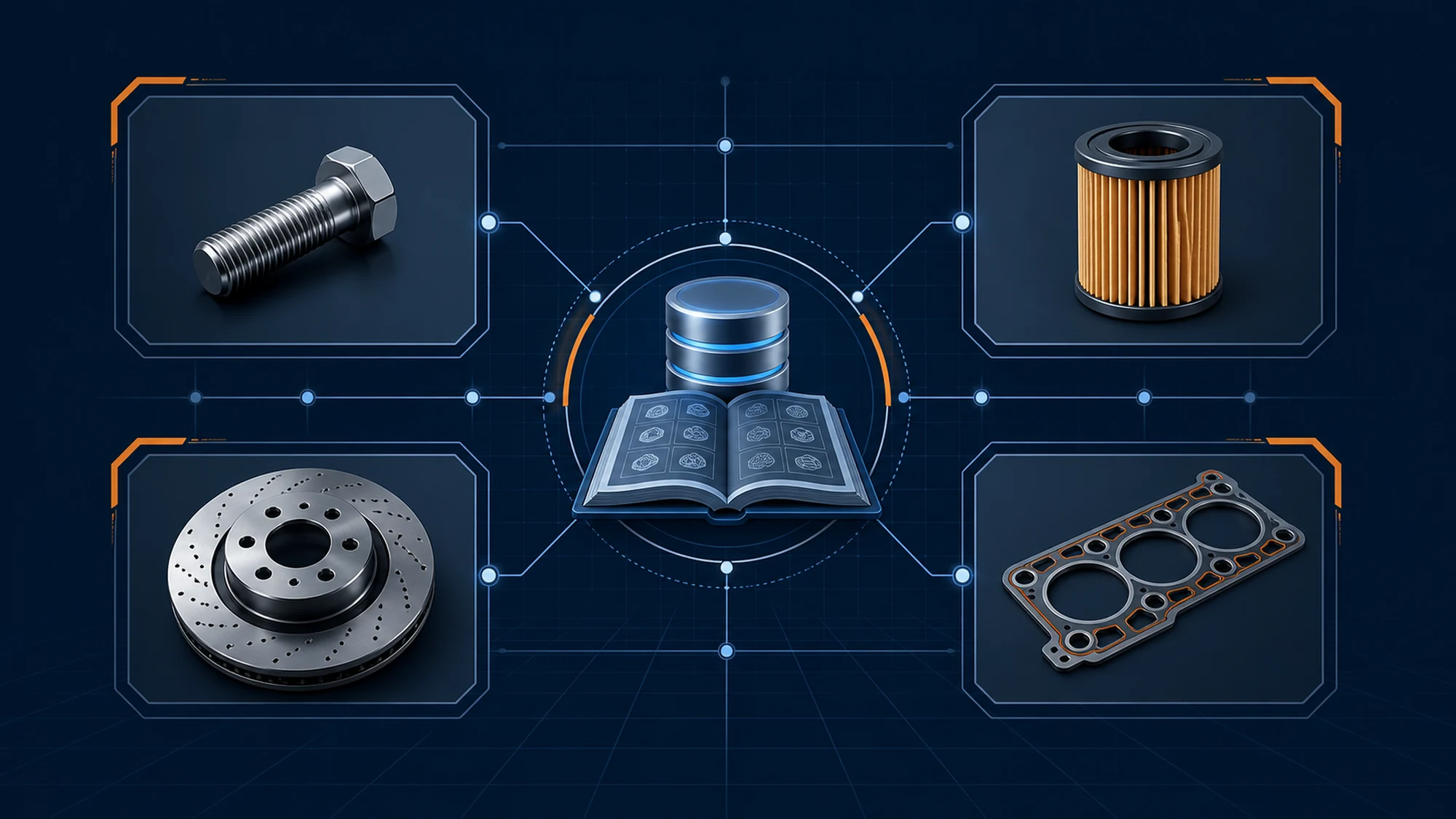
TecDoc images and technical drawings are managed correctly when your store treats them as catalog data, not as static files uploaded once: you pull them through the API alongside the rest of the article data, store them locally under a predictable name tied to the part number, optimize them for the web, and build a clear fallback for parts that have no image in the TecAlliance catalog. Without this flow, catalogs with tens of thousands of references end up either with image-less product pages or with slow load times caused by raw, untreated files.
The difference between a TecDoc catalog that looks professional and one that feels unfinished often comes down exactly to how images and technical drawings are handled. This article explains where these assets come from in the TecDoc data structure, how to integrate them technically into a Laravel store, what problems come up often, and how to avoid them.
What Types of Images and Drawings Does the TecDoc Catalog Provide
The TecDoc catalog does not return a single image type for every article. Depending on the manufacturer and part type, the data returned through the API can include several categories of visual assets, each with a different role on the product page:
- Product photos - the actual photo of the part, the most commonly used asset in product listings and detail pages.
- Technical/schematic drawings - line-art representations of the part, especially useful for complex parts (kits, assemblies, installation sets) where a photo does not clearly show the individual components.
- Assembly diagrams or exploded views - for parts sold as a set, useful for technical buyers (repair shops, workshops) checking correct positioning.
- Manufacturer logos - separate images, used to display the brand next to each article, not the part itself.
Not every article has all of these asset types available - coverage depends on the manufacturer and product line. Check the official TecAlliance documentation for the exact structure of the image fields returned by the API version you are using.
How Images Get From TecDoc Into Your Catalog: the Technical Flow
In practice, image integration follows the same flow as the rest of the TecDoc catalog data: pull via API, process locally, save on your own infrastructure. Typical steps for a Laravel store:
- Fetch image references - when syncing an article, the TecDoc web service returns, alongside the text data, identifiers or URLs pointing to the associated media assets.
- Download and store locally - images get downloaded and saved on your own infrastructure (local disk or S3-type storage), not displayed directly from the external source on every request. This reduces dependency on TecAlliance service availability while a customer is browsing.
- Predictable naming - files get saved under a name tied to the article code (e.g. article number plus manufacturer), not a randomly generated internal ID, so that re-syncing can easily check whether the image already exists.
- Optimize for the web - conversion to a modern format (WebP), resizing to a few standard dimensions (thumbnail, listing, detail), compression without visible quality loss.
- Link to the article in your own database - the path to the optimized file gets saved as a product attribute, not recalculated dynamically on every page render.
Local Storage vs Displaying Directly From the TecDoc Source
| Criterion | Local storage (recommended) | Direct display from TecDoc source |
|---|---|---|
| Page load speed | Fast, served from your own infrastructure/CDN | Depends on the latency and availability of the external service |
| Control over optimization | Full - resizing, compression, WebP format | Limited to the original format and dimensions |
| SEO for images (Google Images) | Own URL, controlled file name, custom alt attributes | External URL, less favorable for indexing |
| Initial implementation effort | Higher - requires a download and processing job | Minimal - display the URL received from the API directly |
| Required storage space | Grows with the number of catalog articles | Zero, assets stay on TecAlliance infrastructure |
For a catalog with several thousand articles or more, local storage is, in most cases, the right choice - the speed and SEO benefits outweigh the extra implementation effort. Direct display from the source remains a viable option only for small catalogs or the initial testing phase of an integration.
Optimizing Images for Speed and SEO
Raw images received through the TecDoc API are not, as a rule, optimized for fast display in an online store. A few practical rules that make a real difference in Core Web Vitals and Google Images ranking:
- Generate at least two to three sizes for every image: thumbnail for listings, medium size for the product page, large size only on request (zoom).
- Use modern formats (WebP, with JPEG fallback for compatibility) to significantly reduce file size compared to the original PNGs.
- Add descriptive
altattributes specific to the part (brand, article code, part type), not generic ones like "product image". - Use lazy loading (
loading="lazy") for images below the fold, especially on listing pages with many articles. - Serve images through a CDN or optimized storage, not directly from the application server, for catalogs with high traffic.
What to Do When an Article Has No Image in the TecDoc Catalog
Image coverage is not complete for all the several million articles in the TecDoc catalog - some references, especially older or niche parts, have no photo or technical drawing attached. A store without a plan for this situation ends up with visibly incomplete product pages, which affects customer trust and conversion rate.
Practical fallback options, in order of preference:
- Generic category image - a single representative illustration per part type (e.g. a generic image for "oil filter"), shown when no real photo exists. It must be visually marked as illustrative, not the exact product photo.
- Manufacturer logo - as a secondary fallback, to keep at least one relevant visual element on the page in the absence of a generic category image.
- Neutral placeholder with a clear message - minimal option, used only when no other option exists - a simple visual with the text "image unavailable for this article", not an empty gray square with no explanation.
Avoid simply leaving blank space in the layout when the image is missing - a consistent fallback keeps the listing visually uniform and does not raise questions about whether the site is working correctly.
Licensing and Usage Rights for TecDoc Images
Images and technical drawings provided through the TecDoc catalog are included under the TecAlliance data usage license, but the exact usage terms (public display, editing, redistribution to other platforms) must be verified directly in the license agreement signed with TecAlliance or the license distributor for your market. Do not assume any use is implicitly allowed just because the image was received through the API.
Points to verify before using TecDoc images at scale:
- Whether the license permits public display on your own store, with no additional restrictions.
- Whether modifying the images (resizing, compression, adding a watermark) is explicitly allowed.
- Whether there are restrictions on using the same images on third-party marketplaces (eBay, Amazon, other platforms) versus your own site.
Common Risks and How to Avoid Them
- Displaying directly from the TecDoc URL, without local storage - works fine at low volume, but becomes a failure point at scale: any temporary downtime of the TecAlliance service leaves product pages without images in real time. Mitigation: download and store locally, use the external source only as a temporary fallback.
- Re-syncing that re-downloads the same images every time - without a mechanism to check "the image already exists locally", the periodic sync job wastes time and bandwidth unnecessarily. Mitigation: check for the file's existence based on the predictable naming convention before re-downloading.
- Unoptimized images uploaded directly to production - large, unedited files slow down listing pages with many products. Mitigation: build the optimization step (resize + WebP) directly into the import job, not as a manual process afterward.
- No consistent fallback for articles without an image - blank or inconsistent pages reduce customer trust and conversion. Mitigation: define the fallback rules (category, then logo, then placeholder) before launch, not after complaints start coming in.
Practical Implementation Plan
- Check the TecAlliance documentation for which image fields are available for the API version/license you are using.
- Build the sync job so it downloads and optimizes images alongside the rest of the article data, not as a separate, unsynchronized process.
- Define the file naming convention (article code plus manufacturer) before the first full sync, to avoid mass renaming later.
- Configure the 2-3 standard sizes (thumbnail, listing, detail) and the WebP format with fallback in the processing pipeline.
- Set the fallback rules for articles without an image and test them on a real sample from the catalog, not just in theory.
- Check the TecAlliance license agreement for the exact image usage terms before the public launch of the catalog.
FAQ: Frequently Asked Questions About TecDoc Images and Technical Drawings
Can I use TecDoc images on marketplaces as well?
It depends on the exact terms of the license signed with TecAlliance or the local distributor - some licenses allow use across multiple channels, others have specific restrictions. Check this point explicitly in the contract before publishing the same images on other platforms.
Why do some articles in the TecDoc catalog have no image?
Visual asset coverage varies by manufacturer and by how old or popular a part is - not all of the several million articles in TecDoc have an associated photo or technical drawing. For these cases, a fallback plan (generic category image, then logo, then placeholder) is necessary.
Is it worth storing images locally, or is displaying them directly from the API enough?
For medium-to-large catalogs, local storage is recommended - it provides better load speed, full control over optimization, and stronger SEO results in Google Images. Direct display remains acceptable only for small catalogs or testing phases.
How much storage space should I allocate for the images of a full TecDoc catalog?
It depends directly on the number of actively displayed articles and the number of sizes generated per image - a catalog with tens of thousands of references can easily reach tens of gigabytes after optimization. Estimate the need based on a real sample from your own catalog, not generic figures, and plan for S3/CDN-type storage for scale, not just local disk.
Are technical drawings useful for regular customers too, not just repair shops?
Yes, drawings and assembly diagrams help any customer visually confirm that the part matches what they need, especially for sets or kits with multiple components, where a single product photo does not clearly show the full structure.
Conclusion
Properly managing TecDoc images and technical drawings is not a cosmetic detail, it is part of the catalog's data infrastructure: fetching via API, local storage with predictable naming, web optimization, and a clear fallback for parts without images. Stores that treat this flow as an automated process, integrated into catalog syncing, end up with product pages that are fast, complete, and better positioned in image search.
We build complete TecDoc integrations, including the image and technical drawing management flow, for Laravel-based auto parts stores. Contact us for a technical consultation.
AI-generated image, used for illustrative purposes.



Write a comment